07 — Test as a Learner#
The editor shows you every step the way a learner sees it, but a learner meets the whole training: the catalog card, the environment that starts when they click Start, the progress, the assessment. Take it once as a learner before you ask for review, and again after the merge.
Before the merge: Preview for learners#
Preview for learners imports your branch's committed, validated head as its own, hidden copy of the training — the main training is never touched. It is offered when:
- there are no errors in Problems,
- there are no unsaved edits (Commit first: a preview imports your committed head),
- the head is Validated ✓ (Validate this commit first: a preview needs a validated commit).
Once imported, the action row reads Previewed abc1234, with:
| Control | What it does |
|---|---|
| Open preview | opens the copy in the learner's lab viewer: Start an environment, run every check, answer every quiz, finish the assessment. ← Back to editor (or the browser's Back) returns to your branch |
| Refresh preview | after a new validated commit: replaces the copy with it, so Open preview shows your latest changes |
| Re-publish (resets progress) | imports the same commit again from the start, wiping your progress in the copy |
| Share with learners / Hide from learners | a registered trainer can list the copy in the tenant's catalog so colleagues can take it before it is published; hidden by default |
| Delete preview | deletes the copy and everyone's progress in it; the training and the branch are not touched |
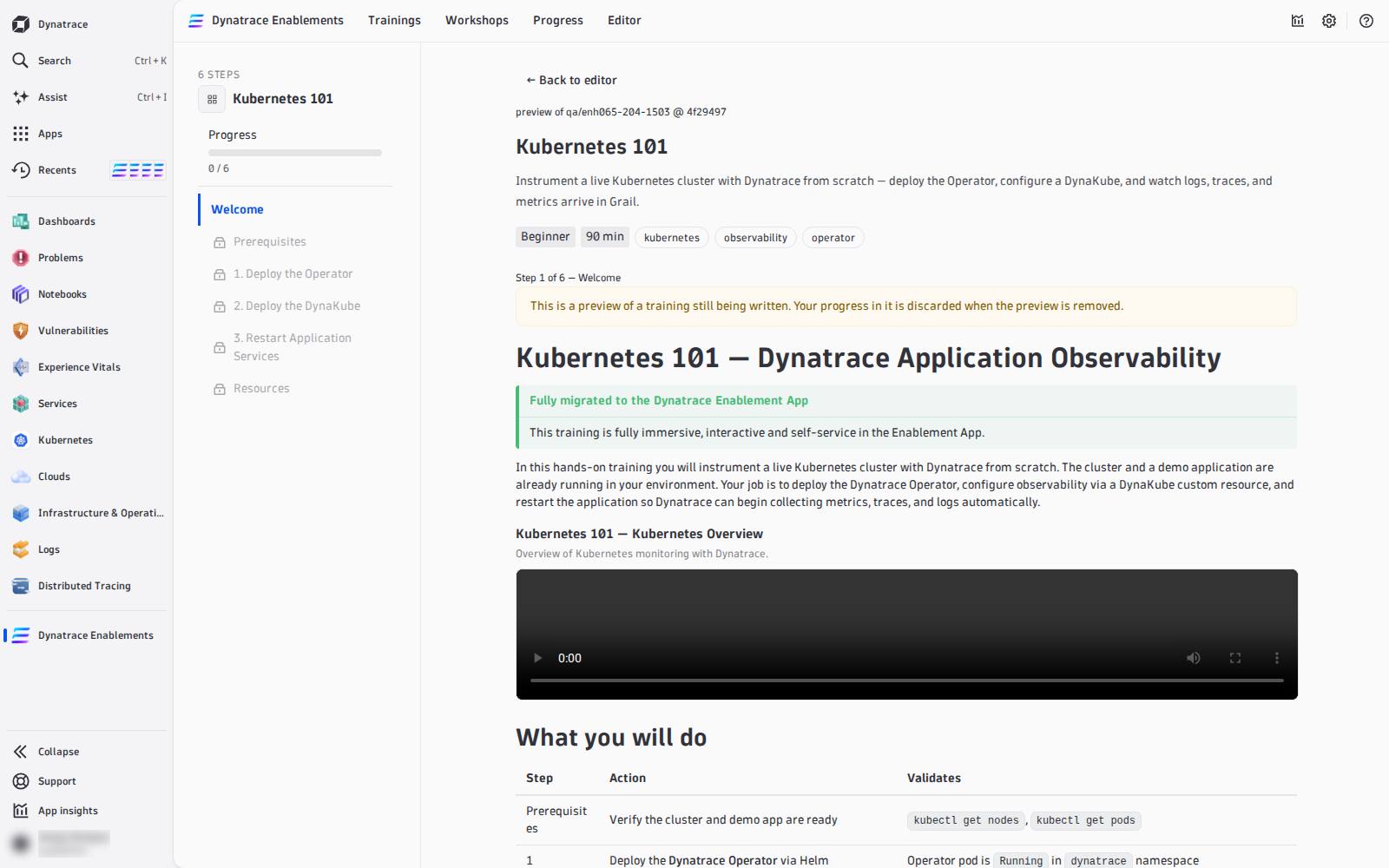
The copy is titled <training> · preview · <branch> · <sha7>, and a learner who opens it is told that it is a preview and that its progress is discarded when it is removed.
Take it as a learner, start to finish:
- the catalog card shows the description, tags, difficulty and duration from Training details;
- the environment starts and every Verify button turns green once its step is done — and stays red before;
- every DQL check finds your data only (
{{DT_SESSION_ID}}); - every quiz has exactly one right answer, and the explanation helps;
- the final assessment loads and scores.
After the merge: refresh, then take the real one#
A merge to main does not update a training that is already in the app: the app imports the Markdown at a commit. After the merge:
- In the app, open Administration and press Refresh content (a dynatrace-wwse training) — or Import lab with the same repository URL (a training you imported yourself). Details: Publish & Ship.
- Open the training from Trainings and go to every step you changed: the text, the checks, the solution and, on the last page, the assessment.
- Delete the preview copy (Delete preview in the editor) once the real training is current.
Then run it once as the trainer of a workshop, with a second account — ideally on a second tenant — so you see both sides: the roster and join code, the live board, chat and questions, and Run solution on a stuck learner.