02 — Start the Environment#
Your branch gets its own live environment: the same container a learner gets — the framework image, your post-create.sh and post-start.sh, the tokens your training declares, minted in your tenant. Opening the editor starts nothing, because an environment costs money; you start it when you need it.
Start it#
Press Start environment in the action row. The environment is built from your branch's last commit (a branch with no commit yet is built from the branch it was created from).
The Workspace tab in the dock follows it: provisioning, then ready. A Kubernetes training like Kubernetes 101 is ready in one to two minutes.
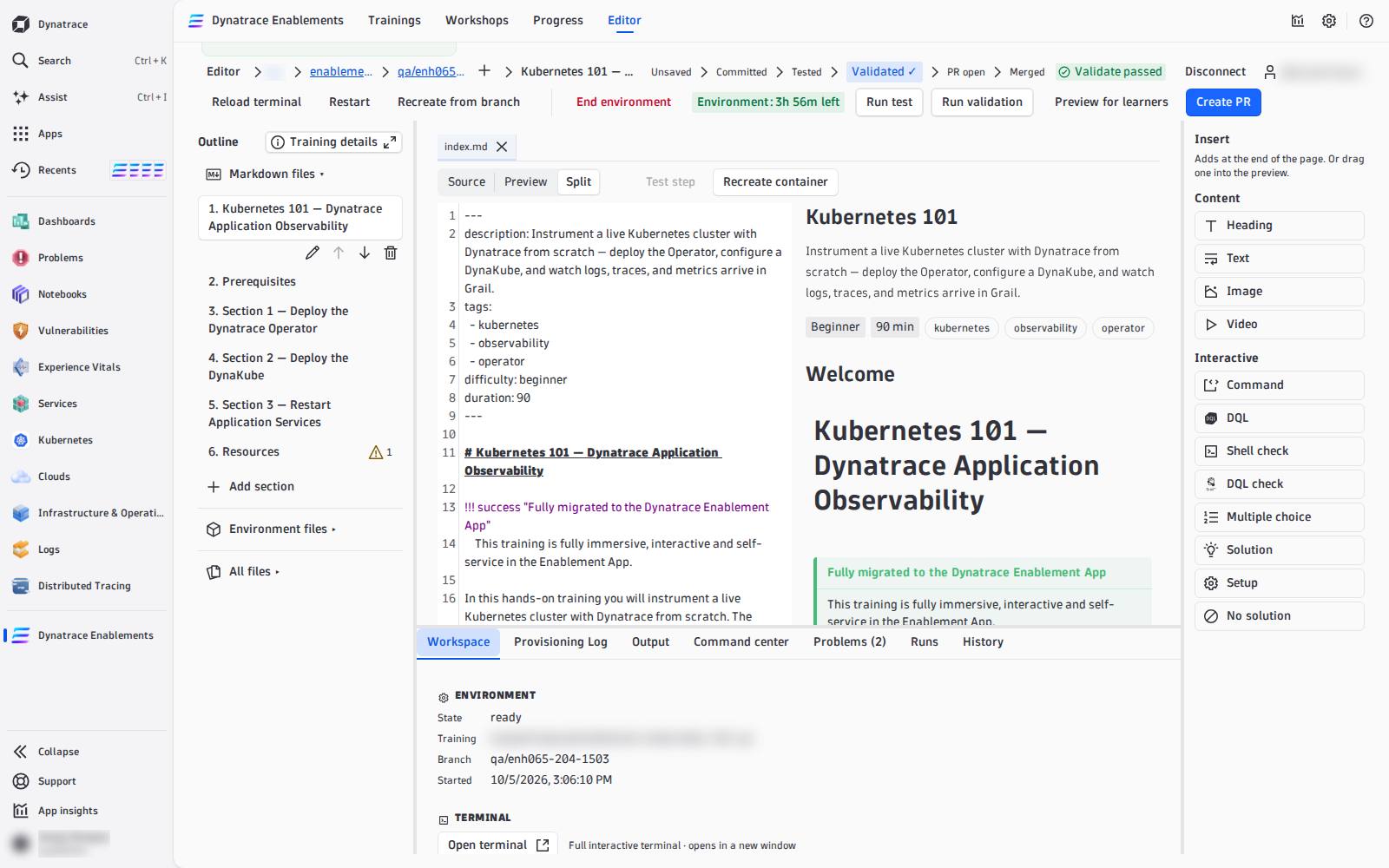
Once it runs, the action row carries its controls:
| Control | What it does |
|---|---|
| Reload terminal | the next terminal you open gets a fresh shell — use it after you changed my_functions.sh |
| Restart | restarts the same container (same environment, the files written into it stay) — use it when the environment hangs |
| Recreate from branch | throws the container away and builds a new one from the branch's last commit — see 05 — Recreate the Environment |
| End environment | stops it; Start environment comes back |
| Environment: 3h 57m left | how long it may still run. After 25 minutes without activity the editor asks Keep working?; after 30 idle minutes the environment ends (your edits are safe). While it runs, Your running environments in the selector brings you back to it |
The Workspace tab#
| Part | What it shows |
|---|---|
| Environment | state, training, branch, when it started |
| Terminal | Open terminal opens a real shell into the container in a new browser window — the framework functions and your my_functions.sh are loaded, with autocomplete |
| Registered apps | every app your automation exposed (registerApp), each with Open App in a new window |
| Variables | every template variable the editor knows, with its value — DT_SESSION_ID, DT_TENANT, JOB_ID, … — the same ones your DQL checks use |
Allow pop-ups
The terminal and the apps open in their own windows. If nothing opens, allow pop-ups for your Dynatrace tenant.
The Provisioning Log tab#
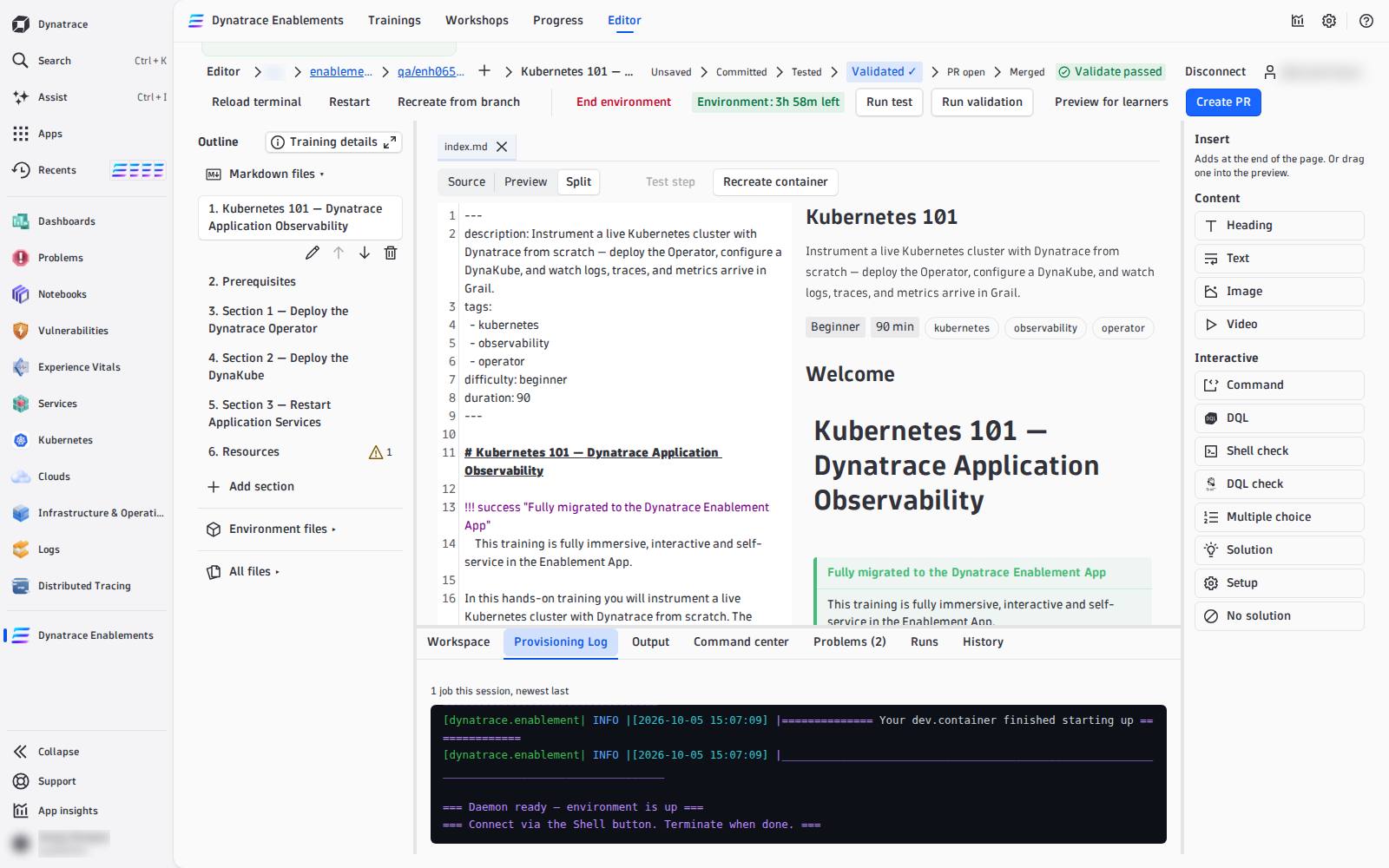
Everything post-create.sh and post-start.sh printed, for every environment of this session. When provisioning fails, the line that names the error is drawn in bold red and repeated under the log — fix the script, commit, and recreate.
What goes into post-create.sh, and which framework functions build a cluster, deploy Dynatrace and your apps: Automate the Environment.