Deploy
Deployment uses Red Hat AAP to configure platform objects and deliver both observability components and the AI application stack.
Objectives
- Configure AAP Controller and EDA objects for the workshop.
- Deploy Dynatrace apps and API settings.
- Deploy EdgeConnect and OneAgent.
- Build and deploy the easyTravel AI Travel Advisor stack using Podman workflows.
Step 1: Create AAP Service Account User
Before running deployment automation, create and validate the aap-service-account user on the RHEL host.
Reference guide: ansible/deploy/docs/aap-service-account-setup.md
Step 2: Configure AAP and EDA
Run the bootstrap playbooks from the ansible directory.
cd ~/workshop-destination-automation/ansible
ansible-playbook deploy/playbooks/configure_aap.yml
ansible-playbook deploy/playbooks/configure_eda.yml
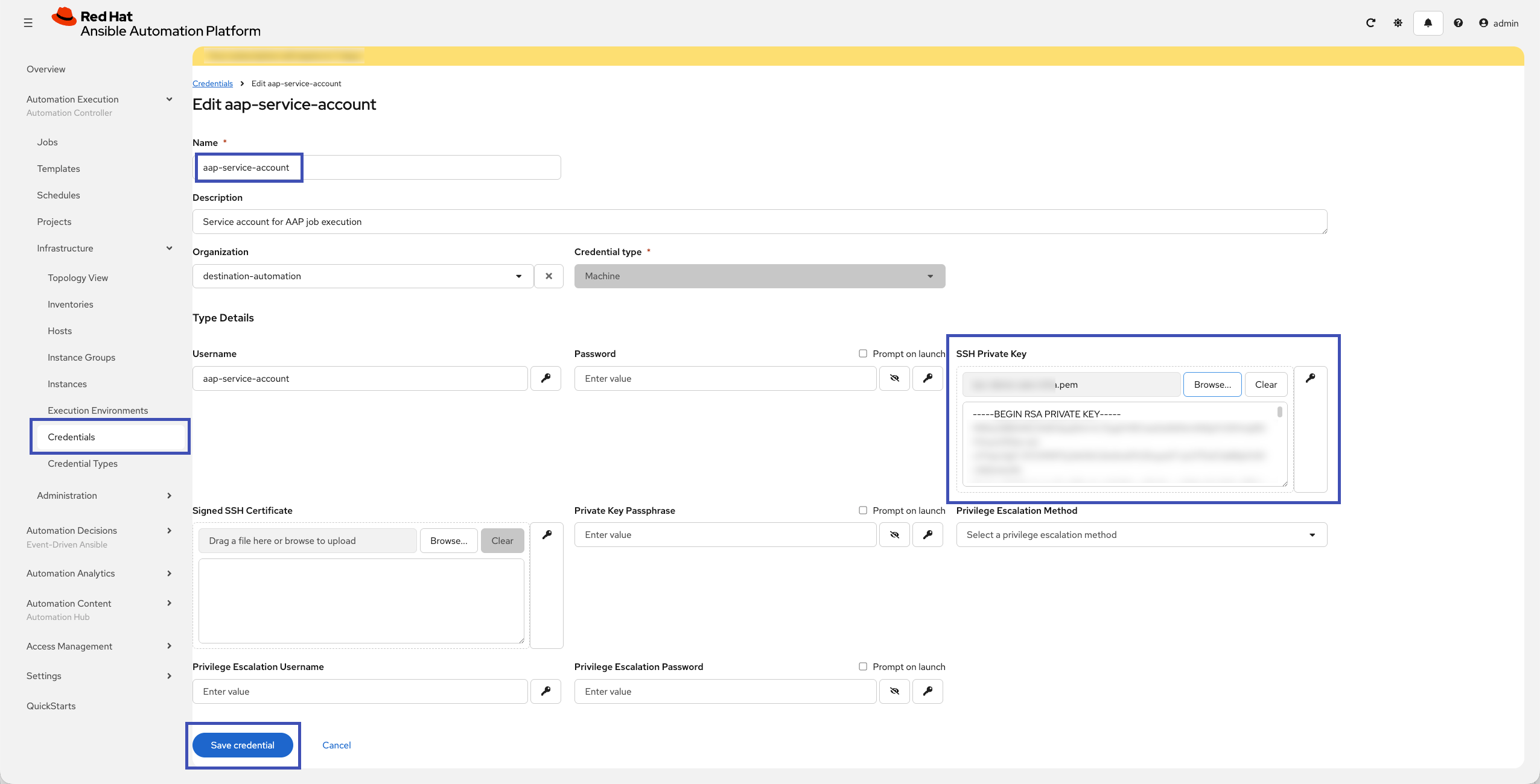
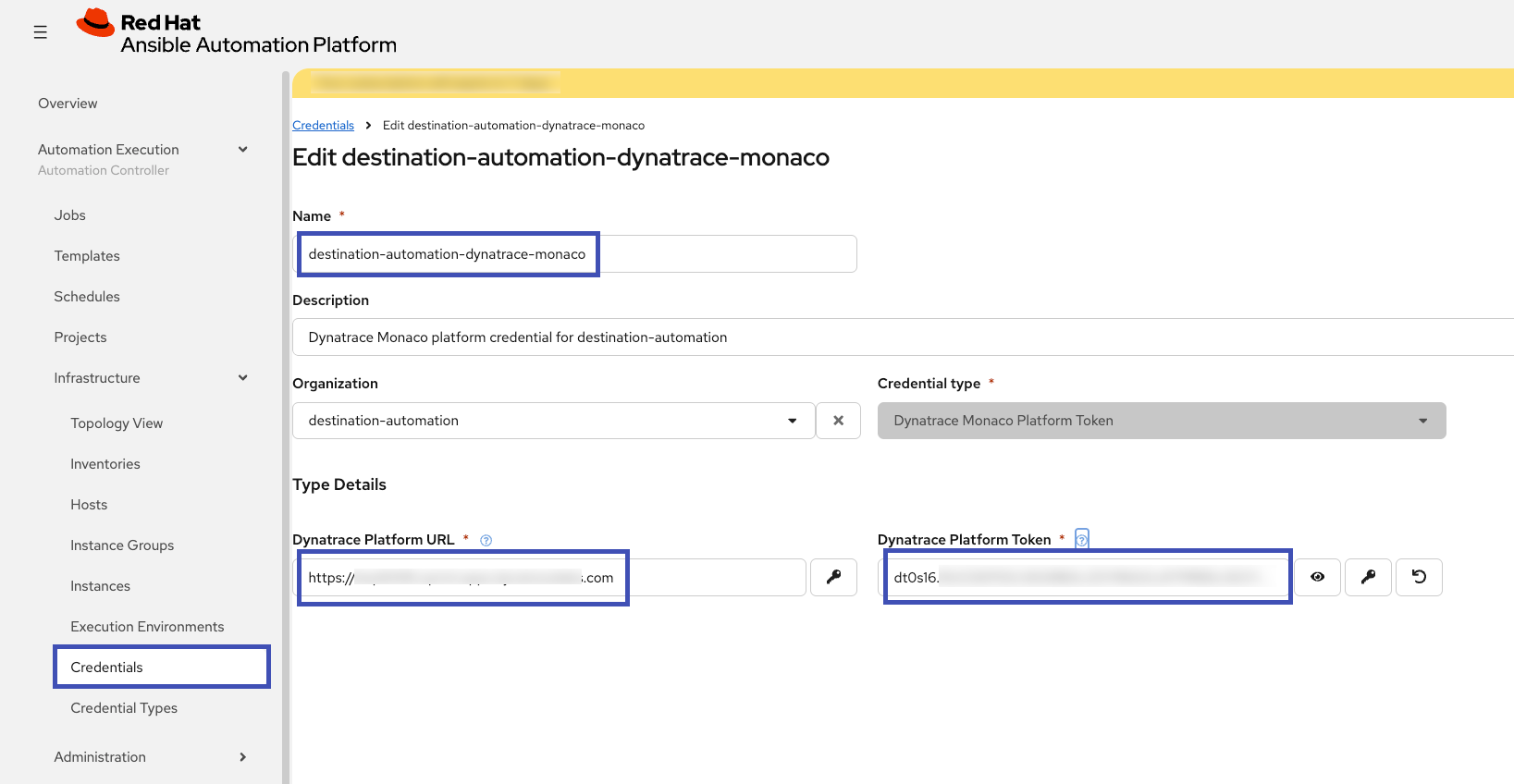
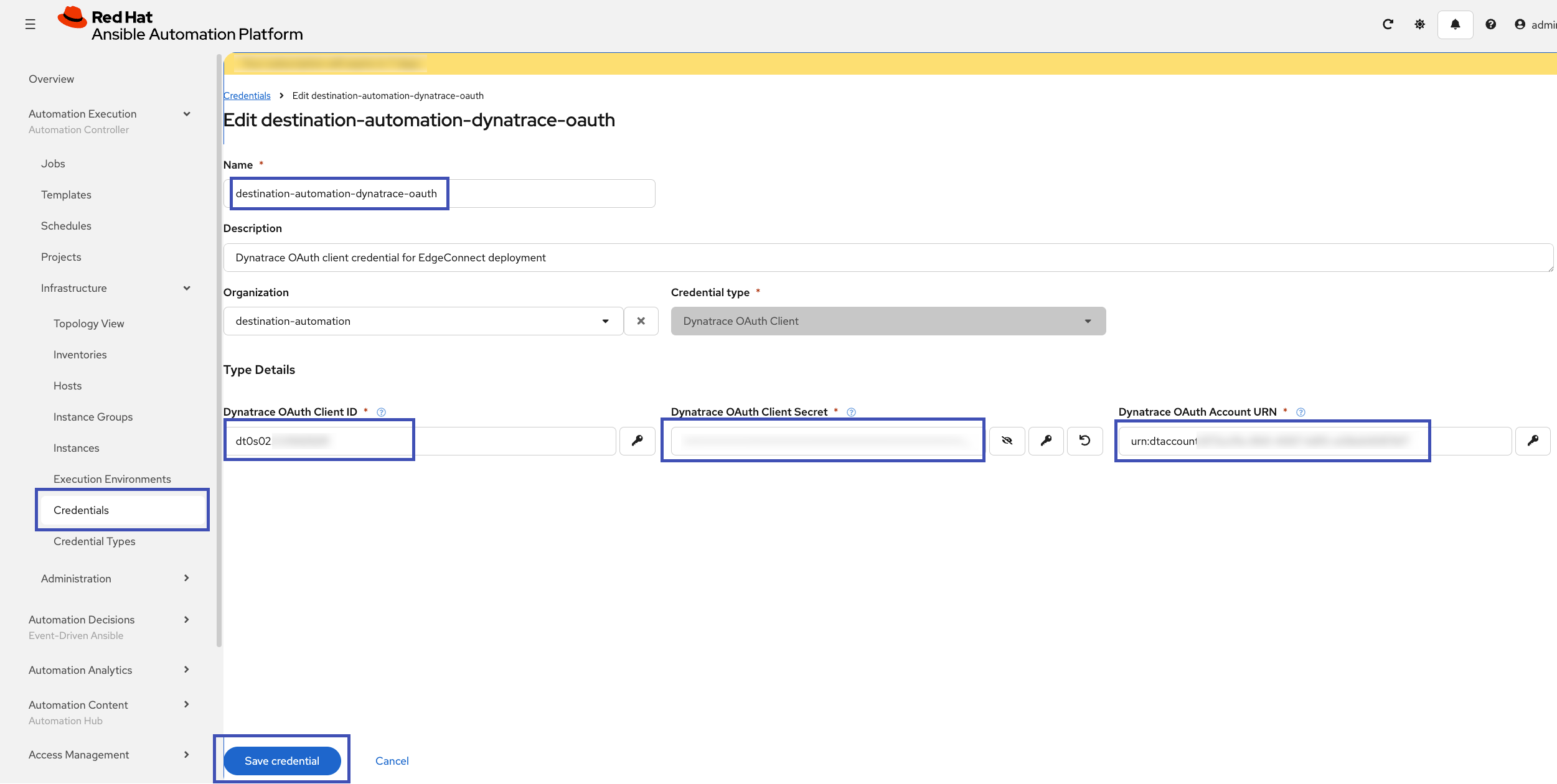
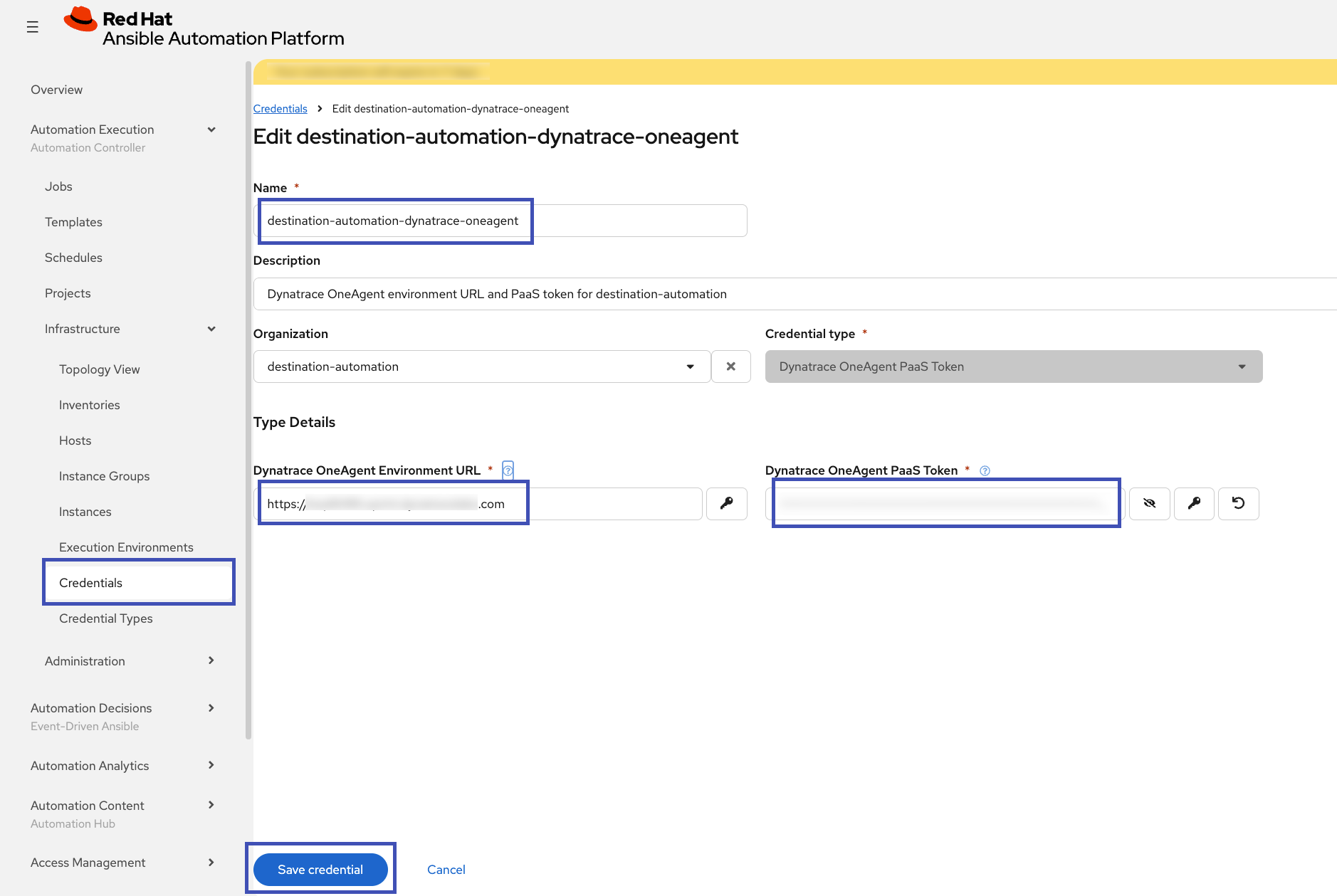
After playbook completion, review credentials and inventory objects in the AAP UI.
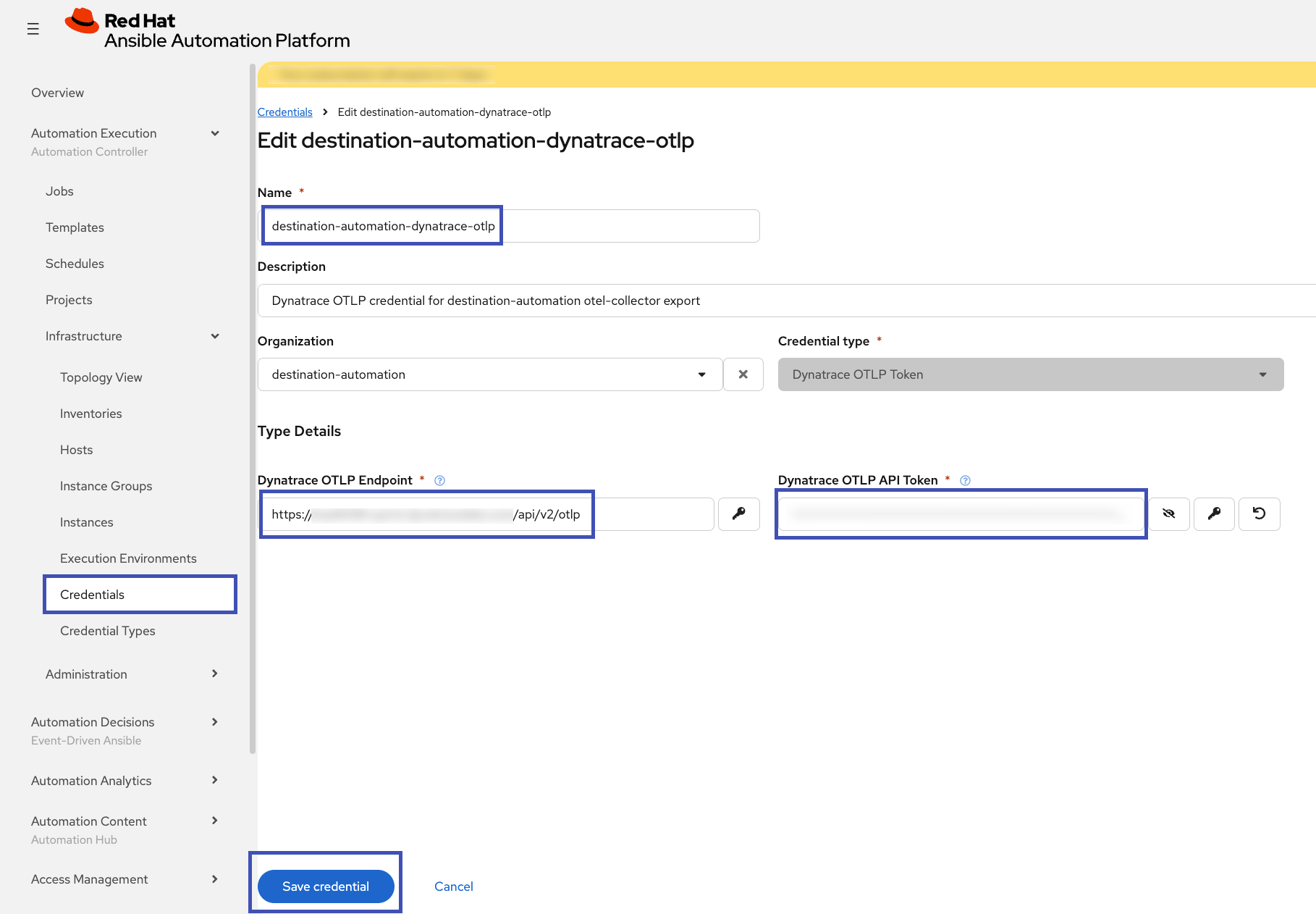
Apply Credentials via UI
- [ ] aap-service-account
- [ ] destination-automation-dynatrace-monaco
- [ ] destination-automation-dynatrace-oauth
- [ ] destination-automation-dynatrace-oneagent
- [ ] destination-automation-dynatrace-otlp
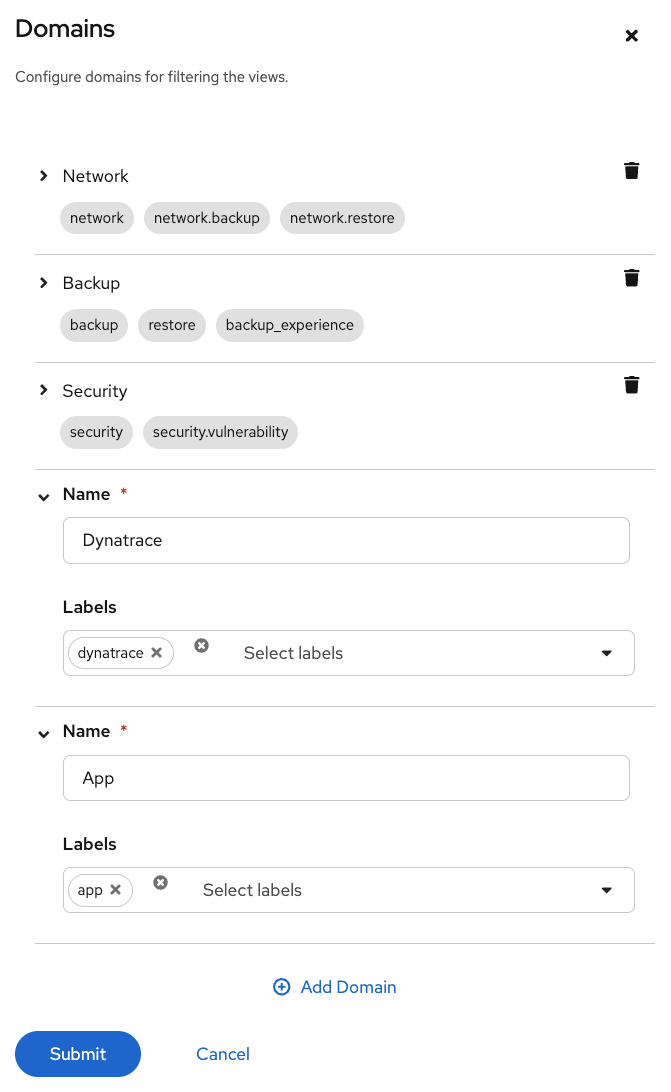
Create Job Template Domains (optional, recommended)
AAP Web UI -> Automation Execution (Automation Controller) -> Templates: Configure Domains (🔧 wrench icon)
- Name: Dynatrace
- Labels: dynatrace
- Name: App
- Labels: app
Step 3: Deploy Dynatrace Components
Launch the relevant AAP job templates for:
- Dynatrace AppEngine apps
destination-automation-deploy-dynatrace-apps
- Dynatrace Monaco project
destination-automation-deploy-dynatrace-monaco
- Dynatrace EdgeConnect (when private network connectivity requires it)
destination-automation-deploy-dynatrace-edgeconnect- Verify you're using the correct value of
dynatrace_edgeconnect_oauth_endpointvariable
- Dynatrace OneAgent on workshop host
destination-automation-deploy-dynatrace-oneagent
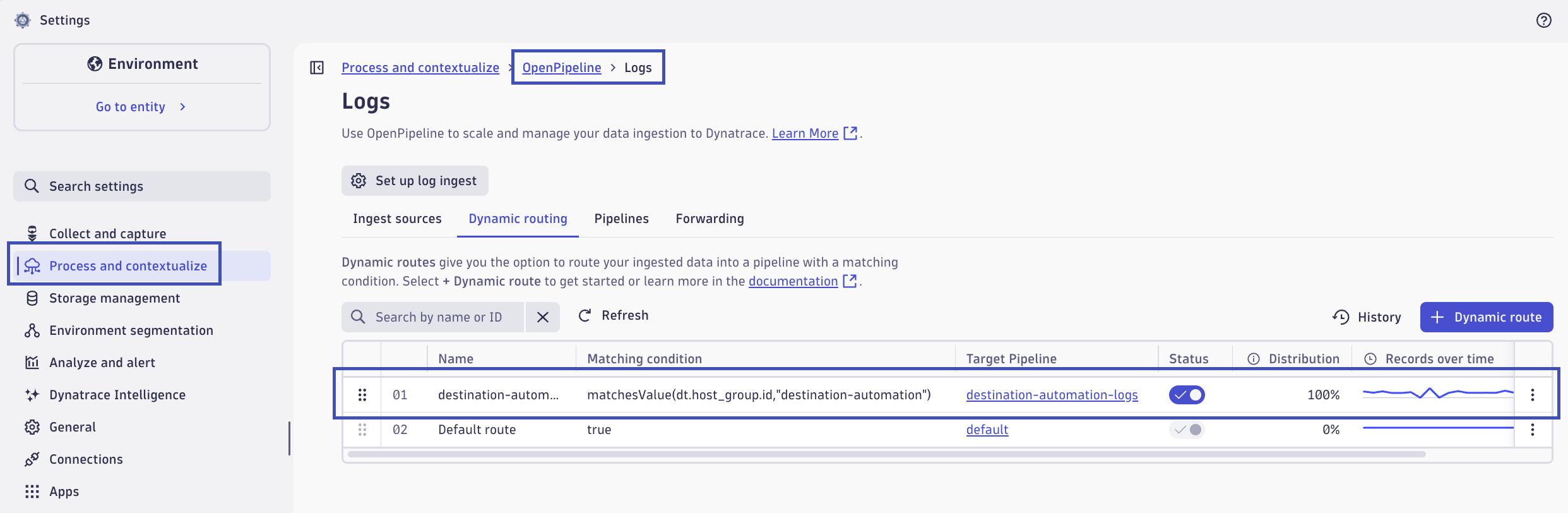
Configure OpenPipeline Routing Tables (Manually):
OpenPipeline routing tables are comprehensive for the environment. If existing rules exist in the routing table, applying a new configuration with Monaco will delete/overwrite the existing rules. To avoid this behavior, for now, routing table rules need to be created manually.
Logs:
- Name:
destination-automation-logs
- Matching Condition:
matchesValue(dt.host_group.id,"destination-automation")
- Pipeline: destination-automation-logs
Spans:
- Name:
destination-automation-spans
- Matching Condition:
matchesValue(dt.host_group.id,"destination-automation")
- Pipeline: destination-automation-spans
BizEvents:
- Name:
destination-automation-bizevents
- Matching Condition:
matchesValue(dt.host_group.id,"destination-automation")
- Pipeline: destination-automation-bizevents
Here is an example routing table for logs:
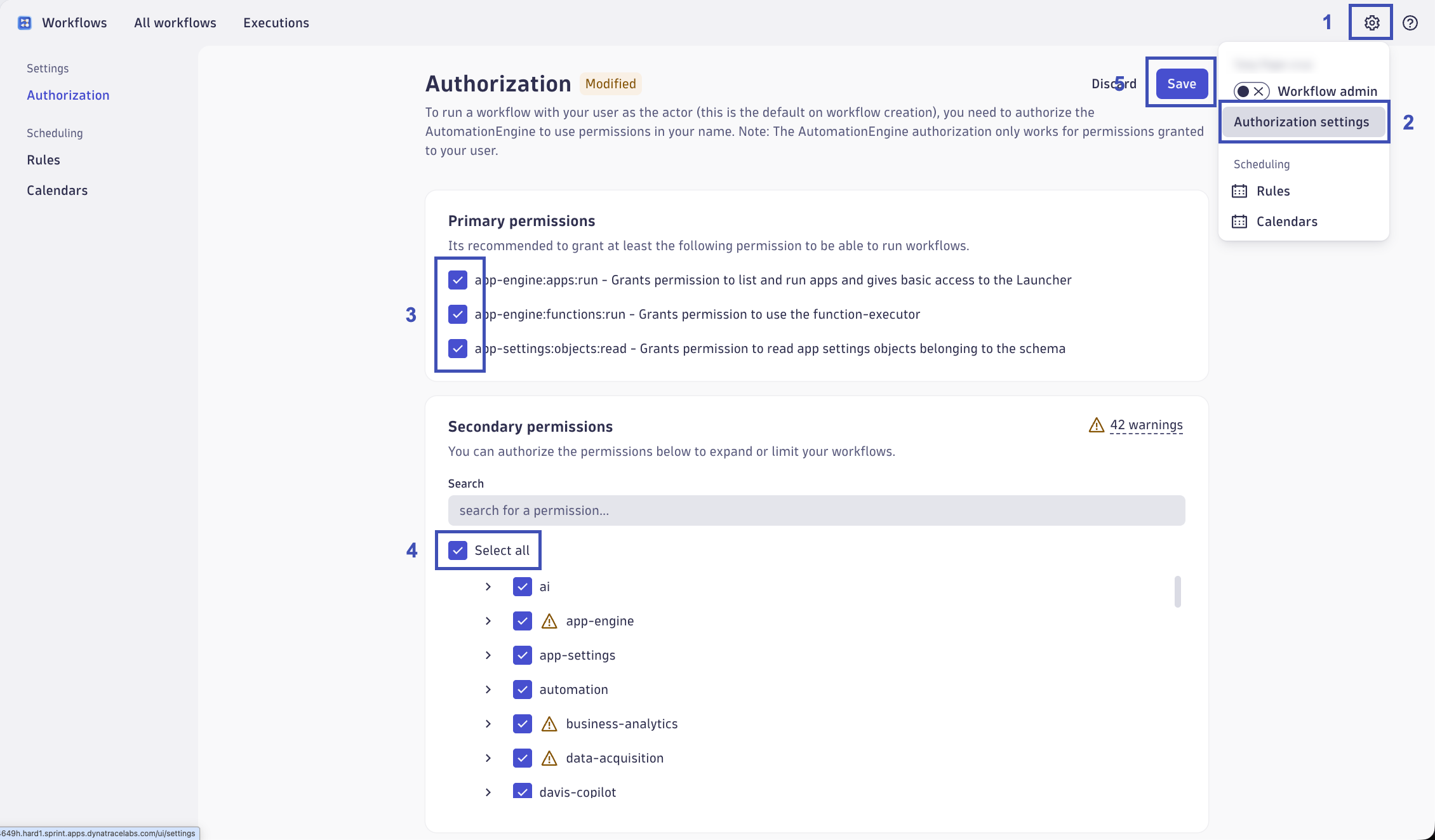
Enable Workflows Authorization:
Open the Workflows app. In the top right corner, click on the gear icon, then Authorization Settings. Enable all Primary Permissions. Enable all Secondary Permissions. Click Save.
Step 4: Deploy the AI Travel Advisor Application
Run the workshop app deployment workflow template from AAP:
destination-automation-workflow-deploy-app-clean
This workflow template will perform the following:
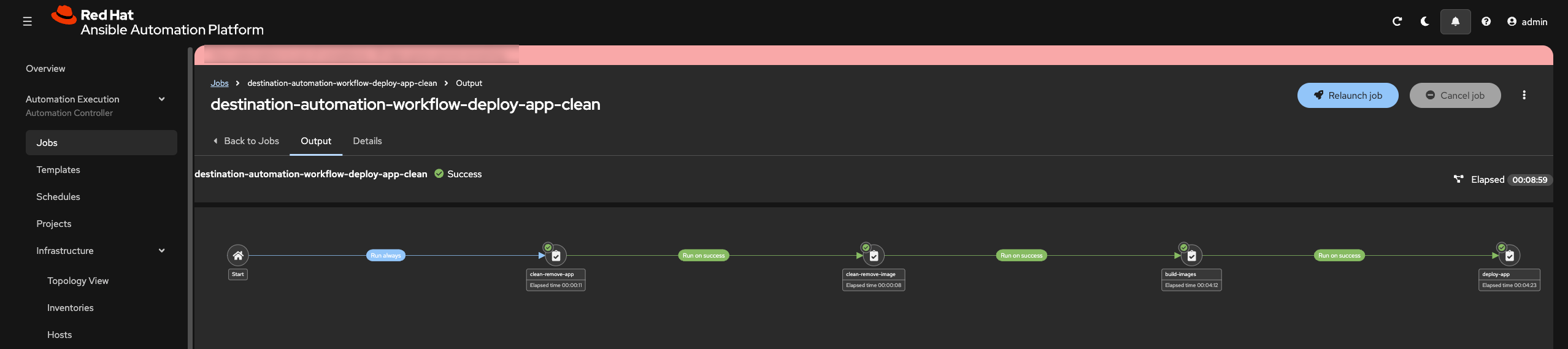
- Remove the app if it already exists
- Remove the images if they already exist
- Build new app images
- Deploy the app as rootless podman containers
- Verify health endpoints and access
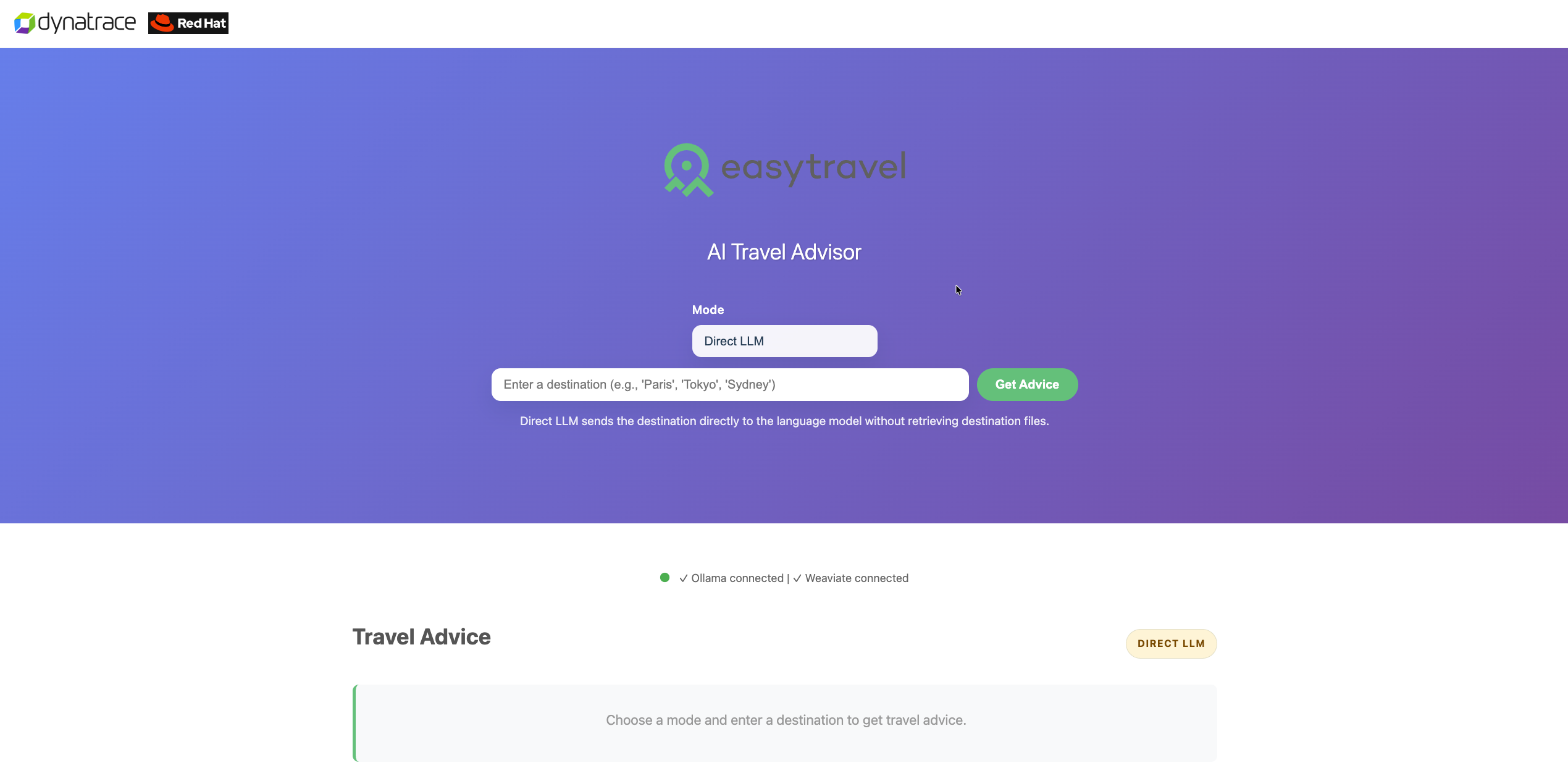
Access the app on port 81 (HTTP) of your public hostname (FQDN or IP).
Validation
- [ ] Dynatrace components are installed and authenticated
- [ ] OneAgent reports data from the workshop host
- [ ] App stack is reachable and healthy
- [ ] AAP workflows complete without failed tasks
Continue to Observe and Automate.